1
Find the Superflow Toolbar and click the More Options icon

2
A sub-menu will expand, click the View Project option to select
3
A new tab will direct you to the Project Dashboard page
By default, you will be directed to the Dashboard for Comment Status screen when accessing the Project Dashboard.
4
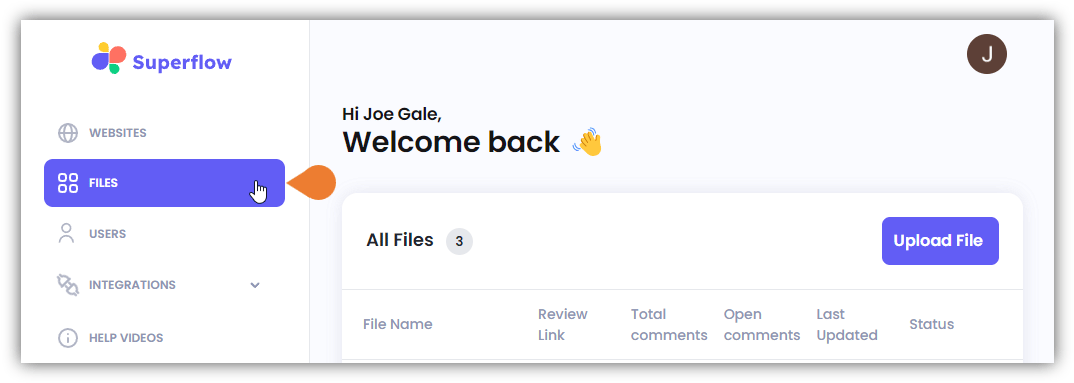
Click the FILES module to access the Files page
5
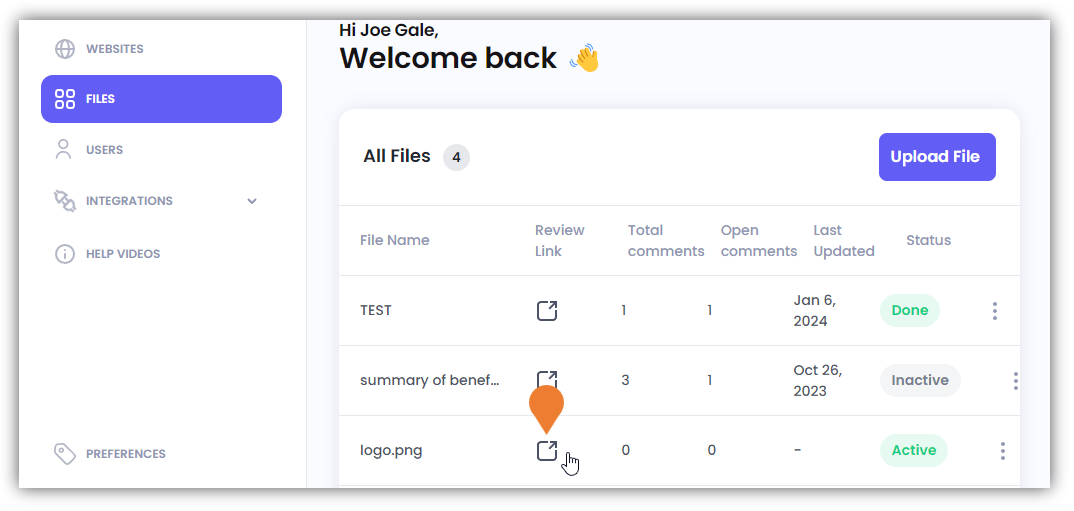
Find the file and click its Review Link icon
6
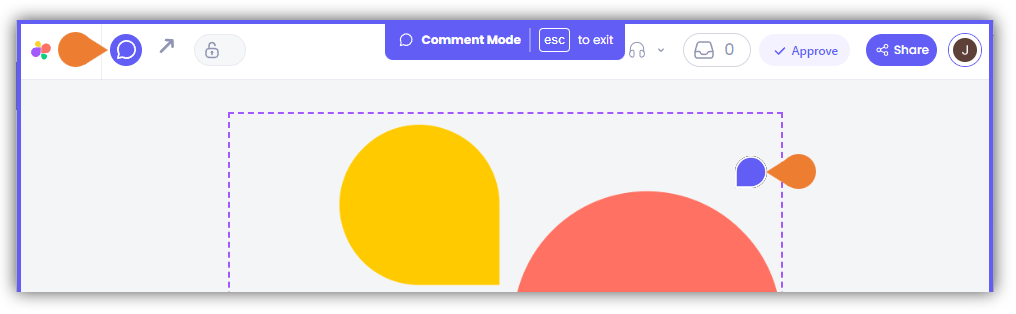
On the Superflow Toolbar, click the Comments icon to enable the Comment Mode
7
Point and click the area on the file that you want to comment on
8
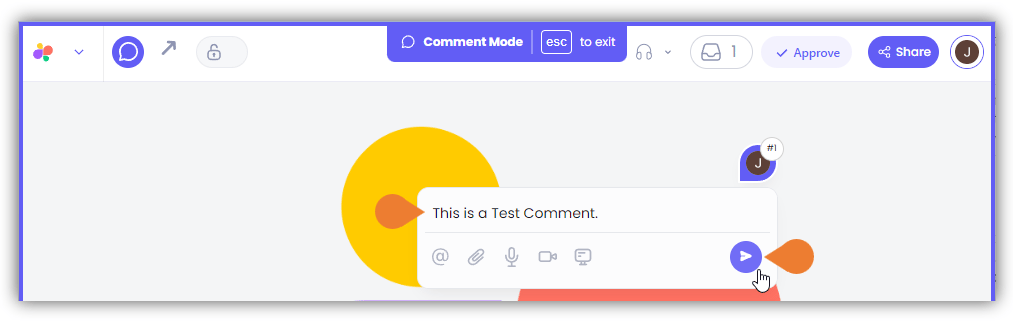
In the Comment field, enter your comment and click the Send icon