1
Go to Settings, then Integrations, then Slack
On the Superflow Dashboard, click Settings in the left sidebar, open the Integrations tab, and pick Slack from the list. Your Slack workflows live here once connected: each row has an on/off toggle, an editor for its trigger, and a run history.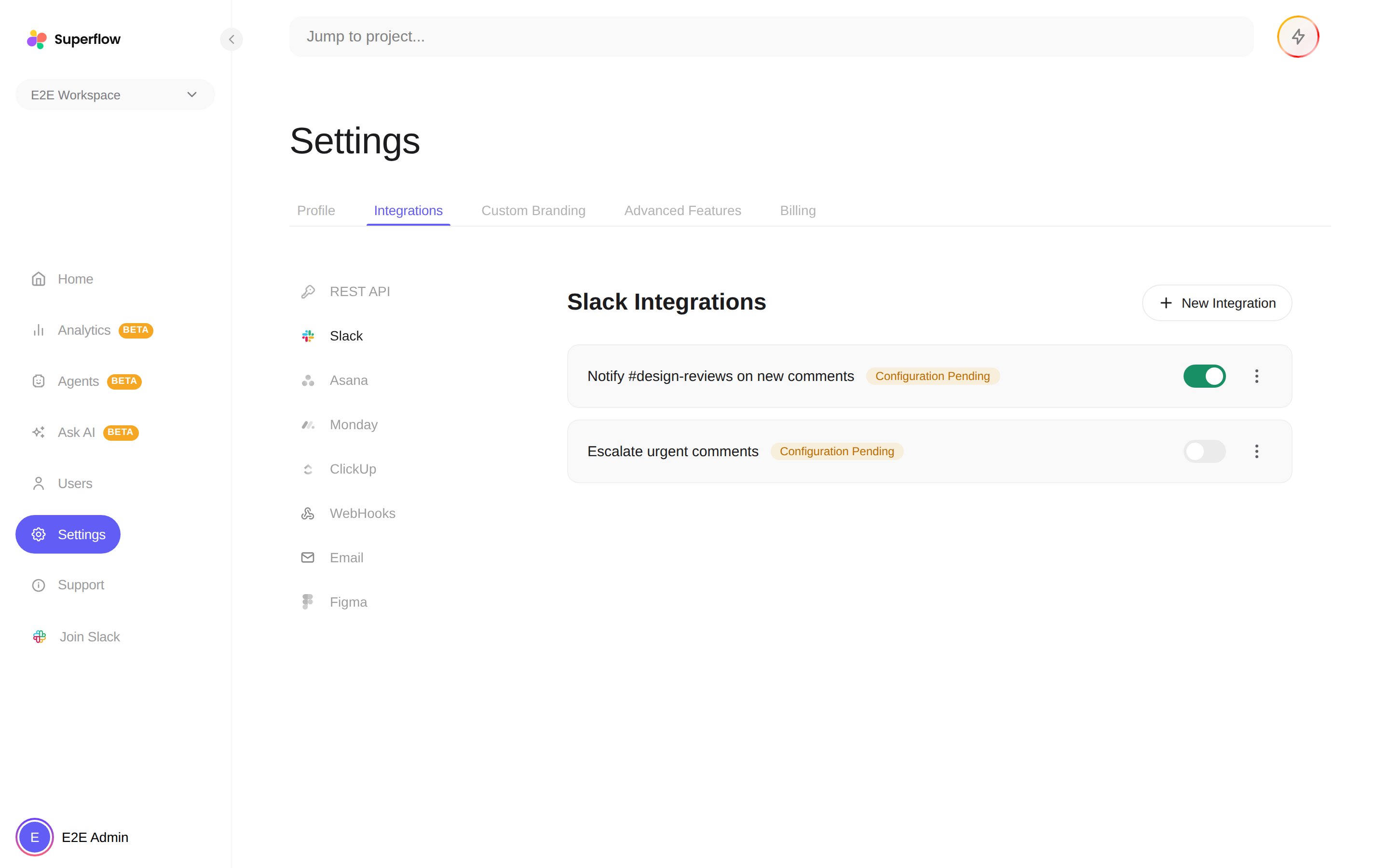
2
Click Connect to start the integration
3
You will be directed to Slack’s integration page
In the Workspace field, enter the workspace’s URL and click Continue.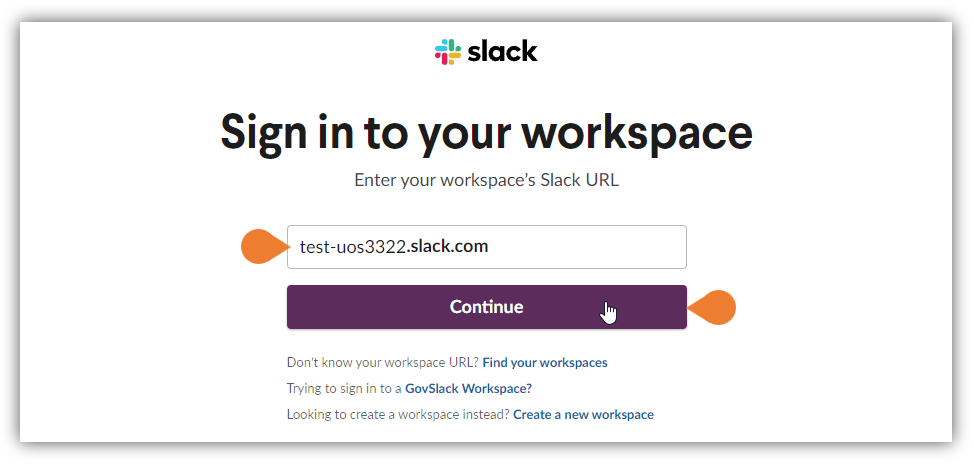
4
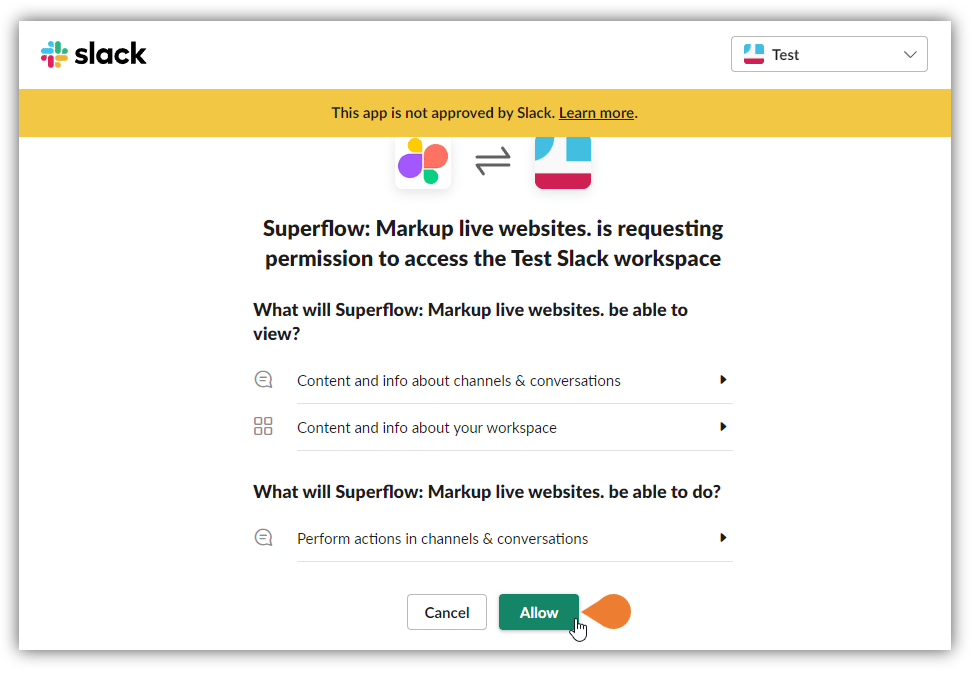
You will be directed to the confirmation page…
You will be directed to the confirmation page, click Allow to allow Superflow to access the specified workspace.