

Turning screenshots on
1
Go to Settings, then Advanced Features
Under Comment Settings, turn on Take screenshot on comments.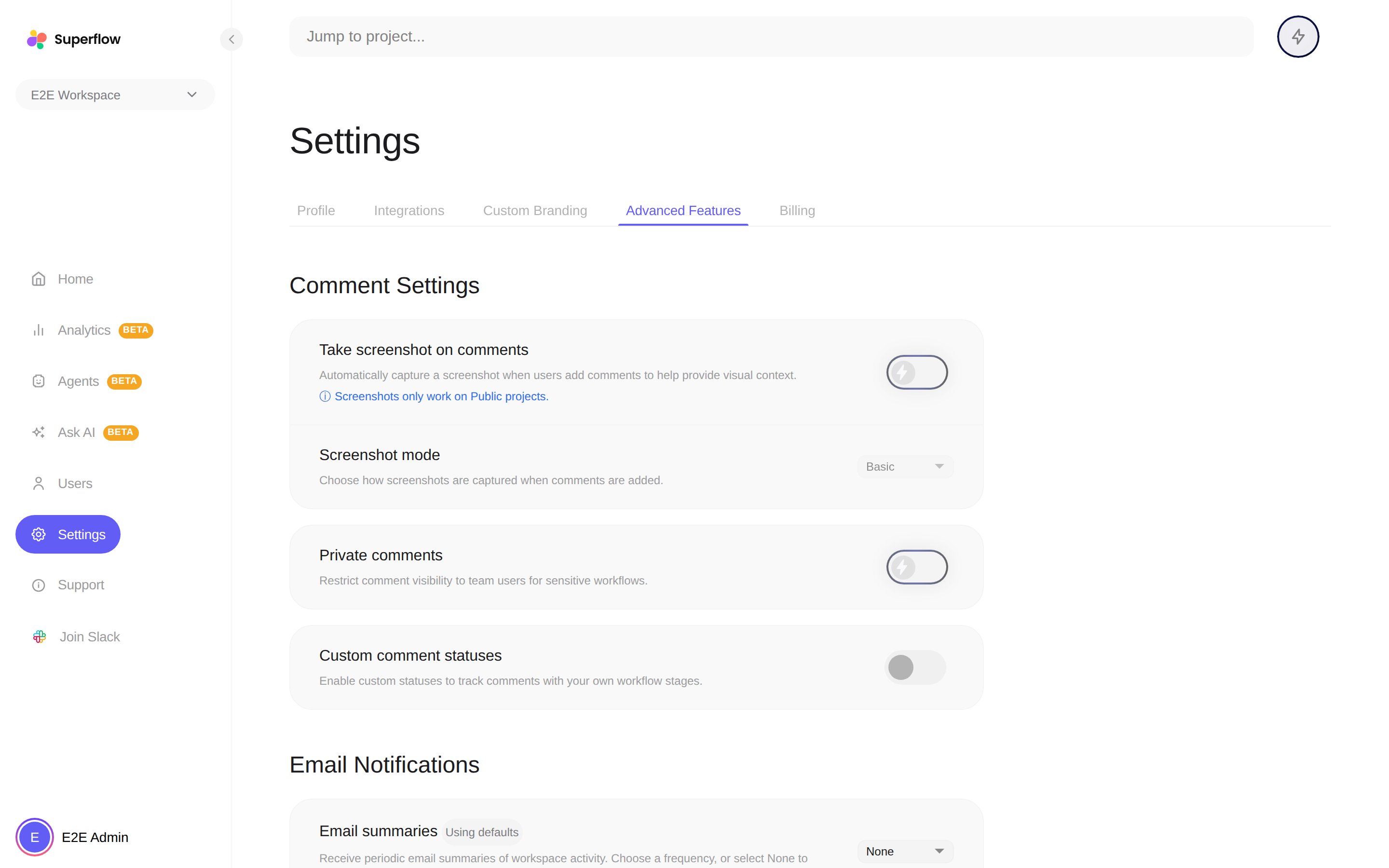
2
Pick a screenshot mode
The Screenshot mode dropdown offers Basic and Local. Basic is right for most sites; read on for when to use Local.
Basic vs. Local mode
In Basic mode the capture happens server-side, which only works if the page is publicly reachable. If your site sits behind a login, the server would capture the login page instead. That is what Local mode is for: it uses the browser’s own screen-sharing permission to capture exactly what the signed-in commenter sees.
In Local mode, the browser asks for screen-sharing permission when entering comment mode. If a reviewer declines, the toolbar shows a “Screenshots off” notice, and they can re-enable capture from the toolbar’s menu with Use Local Screenshot. Superflow’s own toolbar and widgets are excluded from the capture automatically.