> ## Documentation Index
> Fetch the complete documentation index at: https://superflow-claude-superflow-portal-docs-78gpp8.mintlify.site/llms.txt
> Use this file to discover all available pages before exploring further.

# Next.js

> Install Superflow on Next.js, with a video walkthrough and step-by-step screenshots.

<Frame caption="Watch the full Next.js walkthrough">
  <iframe className="w-full aspect-video rounded-xl" src="https://www.youtube.com/embed/oYmm4klCkvU?si=6Jezcl_vPo-ly_k7" title="Install Superflow on Next.js" frameBorder="0" allow="accelerometer; autoplay; clipboard-write; encrypted-media; gyroscope; picture-in-picture; web-share" allowFullScreen />
</Frame>

<Tip>
  Prefer to read? Every step in the video is written out below, with a screenshot for each one.
</Tip>

[Github Repo](https://github.com/benjvelt/superflow-next)

[Demo](https://superflow-next.vercel.app/?review=true)

<Steps>
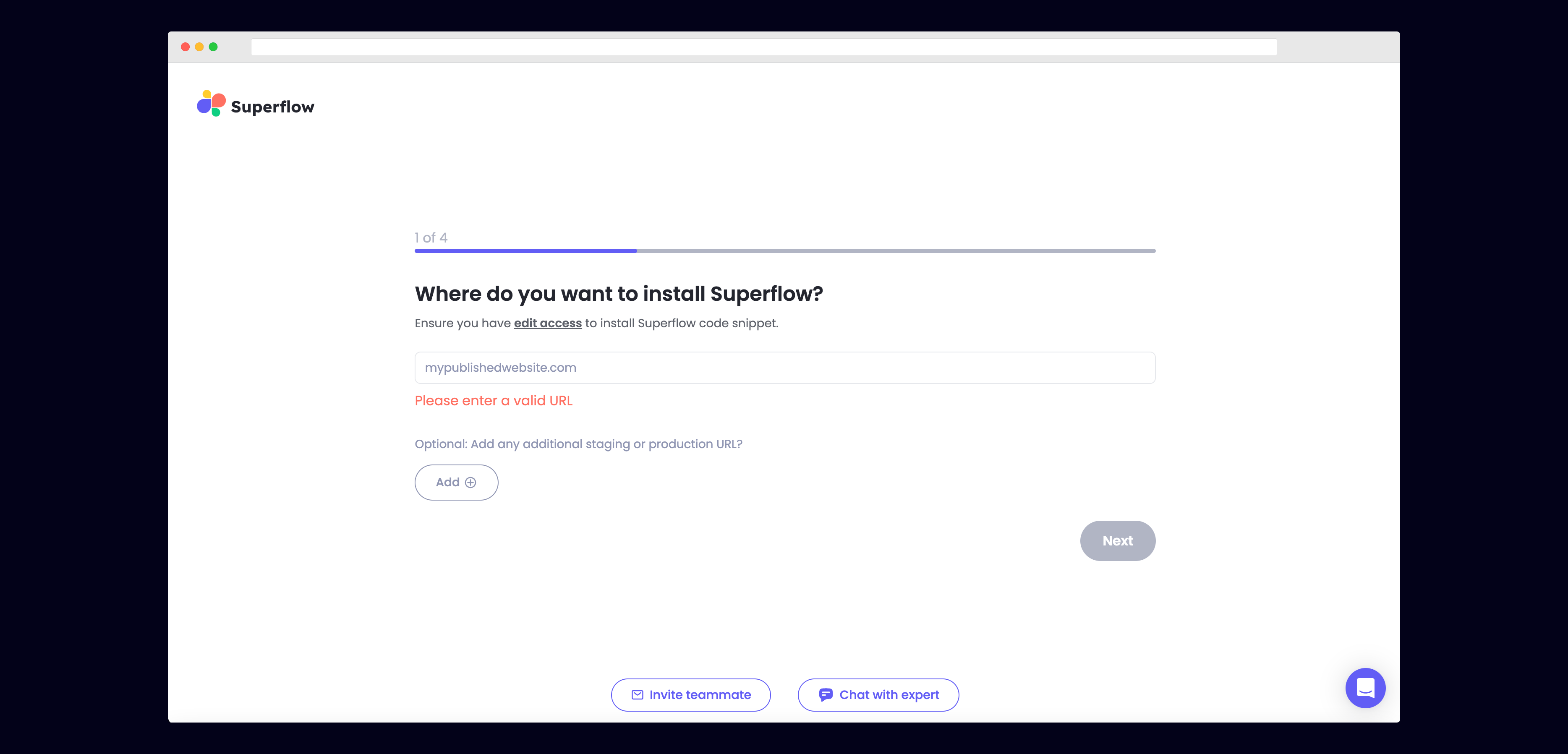
  <Step title="Enter Your Site URL">
    Enter the site URL you want Superflow to be installed in.

    <Frame>
      <img src="https://mintcdn.com/superflow-claude-superflow-portal-docs-78gpp8/_zKrRwh5L1PapanY/images/enter-url-final.png?fit=max&auto=format&n=_zKrRwh5L1PapanY&q=85&s=c8a09de8b3c9572c73e5651837dccab7" alt="Next.js: Enter Your Site URL" width="3736" height="1797" data-path="images/enter-url-final.png" />
    </Frame>
  </Step>

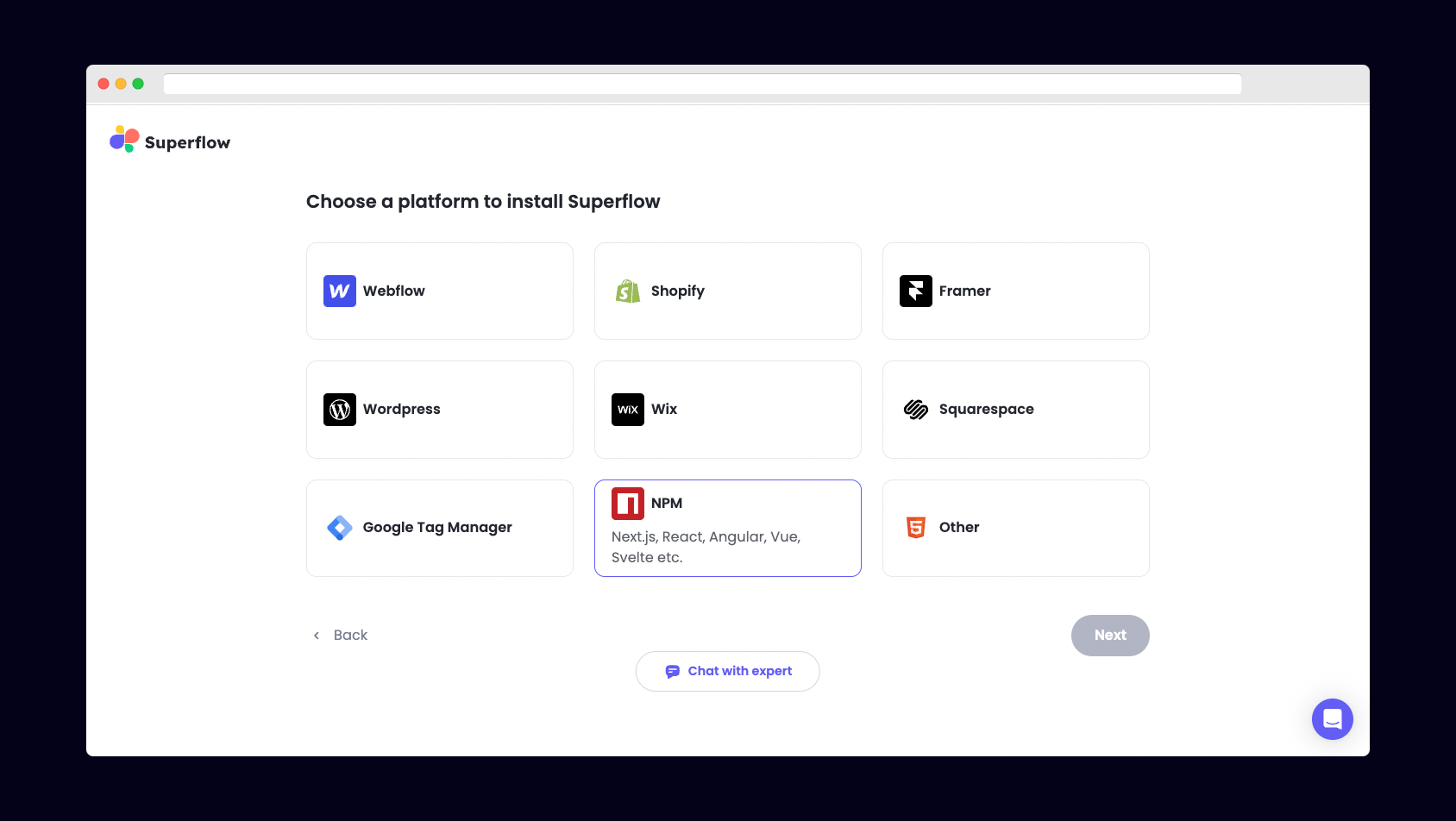
  <Step title="Select NPM from the list of Platforms">
    Choose NPM from the list of options to install Superflow with Next.js.

    <Frame>
      <img src="https://mintcdn.com/superflow-claude-superflow-portal-docs-78gpp8/g2KY_MNTB5LdaNY9/images/select-npm-final.png?fit=max&auto=format&n=g2KY_MNTB5LdaNY9&q=85&s=56312e9bee9609b1b611b1c40673fb4f" alt="Next.js: Select NPM from the list of Platforms" width="1688" height="952" data-path="images/select-npm-final.png" />
    </Frame>
  </Step>

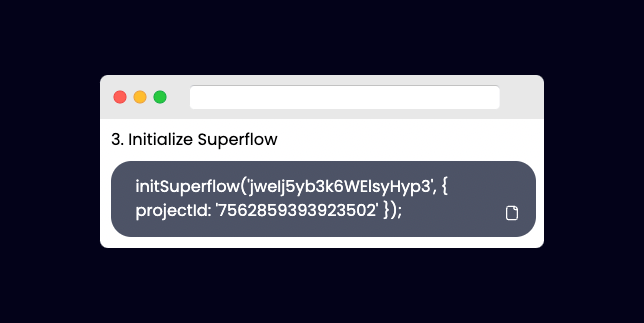
  <Step title="Copy your unique Superflow Code">
    Copy the code from the section "Initialize Superflow"

    <Frame>
      <img src="https://mintcdn.com/superflow-claude-superflow-portal-docs-78gpp8/_zKrRwh5L1PapanY/images/copy-npm-final.png?fit=max&auto=format&n=_zKrRwh5L1PapanY&q=85&s=463d003f11299826d8ad9bb1e93de781" alt="Next.js: Copy your unique Superflow Code" width="644" height="323" data-path="images/copy-npm-final.png" />
    </Frame>
  </Step>

  <Step title="Install the Superflow NPM package">
    Install the Superflow NPM package with:

    ```
    npm i @usesuperflow/client
    ```
  </Step>

  <Step title="Import Superflow into your page.tsx file">
    Import the Superflow NPM package with:

    ```
    import { initSuperflow } from '@usesuperflow/client'
    ```
  </Step>

  <Step title="Initialize Superflow within page.tsx">
    Import `initSuperflow` from the NPM package and use it to initialize Superflow.

    Create a `useEffect` hook and paste in the unique Superflow code you copied earlier.

    Be sure to add `"use client"` at the top of your `page.tsx` file to enable client side data-fetching.

    ```js theme={null}
    "use client";

    import Image from 'next/image'
    import { useEffect } from 'react'
    import { initSuperflow } from '@usesuperflow/client'

    export default function Home() {

    useEffect(()=>{
      //initialize Superflow
      initSuperflow('YOUR_API_KEY', {
        projectId: 'YOUR_PROJECT_ID'
      });

    })
    return (
      <main className="flex min-h-screen flex-col items-center justify-between p-24">
        <div className="z-10 max-w-5xl w-full items-center justify-between font-mono text-sm lg:flex">
          <p className="text-xl fixed left-0 top-0 flex w-full justify-center border-b border-gray-300 bg-gradient-to-b from-zinc-200 pb-6 pt-8 backdrop-blur-2xl dark:border-neutral-800 dark:bg-zinc-800/30 dark:from-inherit lg:static lg:w-auto  lg:rounded-xl lg:border lg:bg-gray-200 lg:p-4 lg:dark:bg-zinc-800/30">
            Highlight this text to test out Superflow
          </p>
        </div>
      </main>
    )
    }
    ```
  </Step>

  <Step title="Deploy your Next app with your changes.">
    Deploy your Next app with your new changes.
  </Step>

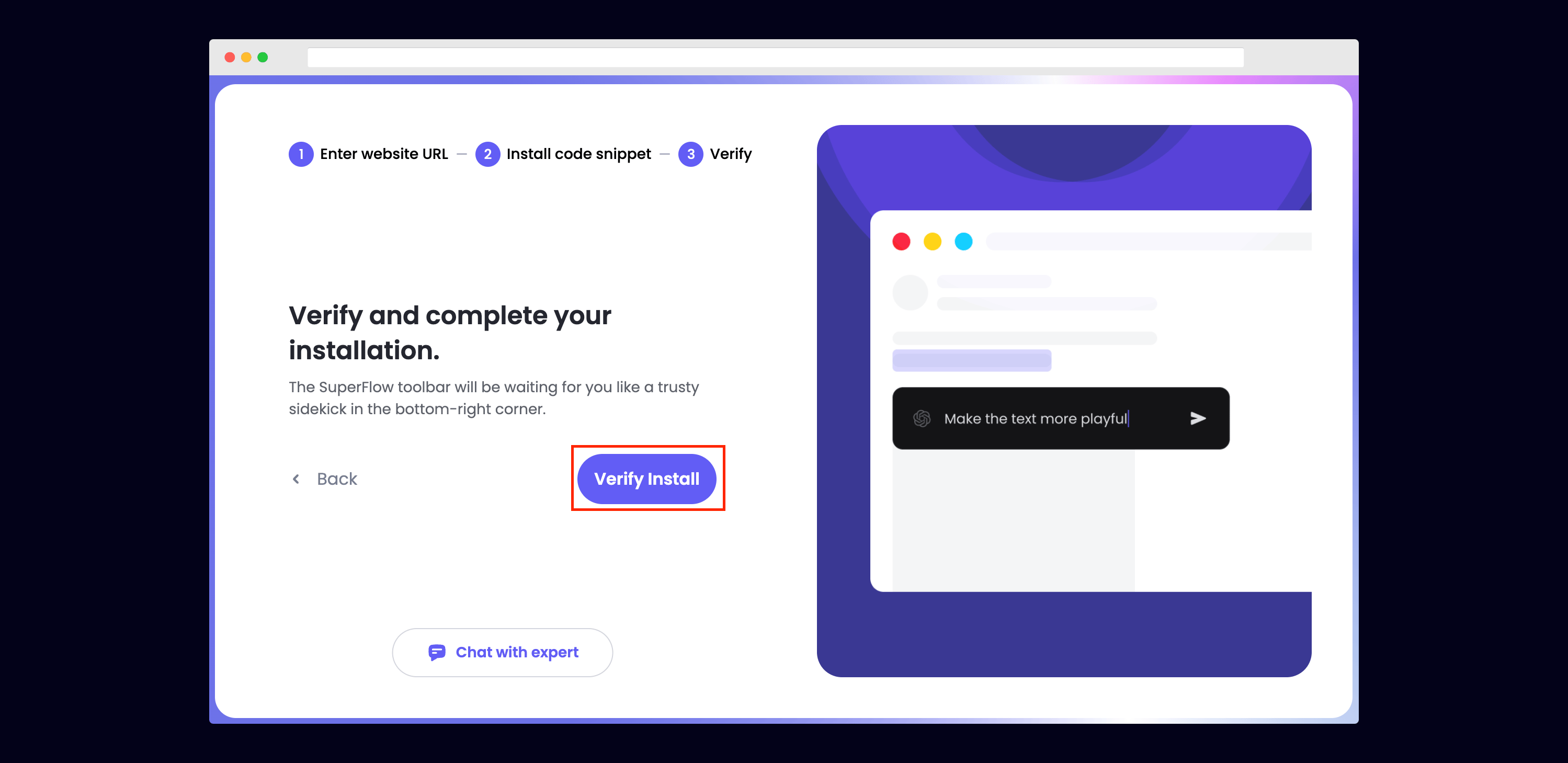
  <Step title="Verify your Installation">
    Verify your Superflow installation by clicking the Verify button on the onboarding flow.

    <Frame>
      <img src="https://mintcdn.com/superflow-claude-superflow-portal-docs-78gpp8/g2KY_MNTB5LdaNY9/images/verify-final.png?fit=max&auto=format&n=g2KY_MNTB5LdaNY9&q=85&s=bb7d8205964ce5188940907cb8260915" alt="Next.js: Verify your Installation" width="2998" height="1459" data-path="images/verify-final.png" />
    </Frame>

    If successful, you should be redirected to your published Next site and see the following success message:

    <Frame>
      <img src="https://mintcdn.com/superflow-claude-superflow-portal-docs-78gpp8/g2KY_MNTB5LdaNY9/images/verified-final.png?fit=max&auto=format&n=g2KY_MNTB5LdaNY9&q=85&s=67af7ec1dfe72bc2974e612b4734cb2d" alt="Next.js: Verify your Installation" width="1366" height="1206" data-path="images/verified-final.png" />
    </Frame>
  </Step>

  <Step title="Troubleshooting">
    Having trouble getting your verifying your installation? Here are the common mistakes users encounter when installing Superflow:

    * Did you forget to save the Custom Code?
    * Did you forget to publish your site?
    * Is the browser still loading a cached version?
    * Did you add `?review=true` at the end of your url?
    * Did you publish your changes on a staging URL while you are trying to access a Prod URL?
    * Did you accidentally install multiple Superflow scripts in the Custom Code?
  </Step>

  <Step title="Navigate to your Next site">
    Now that you have verified that Superflow has been installed on your Next site, navigate to your published site and add `?review=true` at the end of the URL to enable Superflow.

    `Example: mywebsite.com/?review=true`
  </Step>

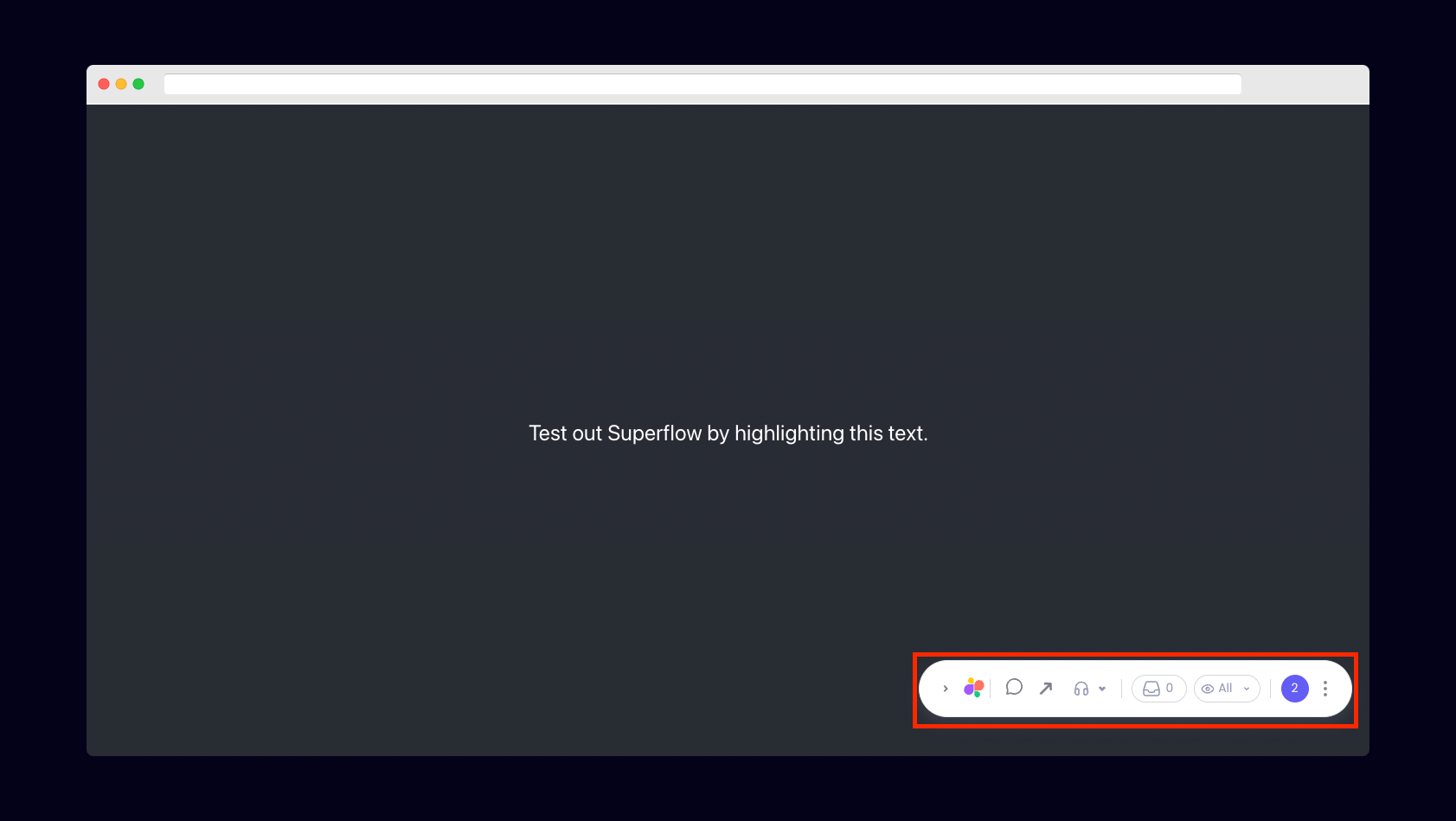
  <Step title="Test out Superflow">
    You should now see a Superflow toolbar on the bottom right of your screen.

    <Frame>
      <img src="https://mintcdn.com/superflow-claude-superflow-portal-docs-78gpp8/g2KY_MNTB5LdaNY9/images/react-toolbar-final.png?fit=max&auto=format&n=g2KY_MNTB5LdaNY9&q=85&s=76efb2333990facffbd44c7c0dd23f56" alt="Next.js: Test out Superflow" width="1683" height="949" data-path="images/react-toolbar-final.png" />
    </Frame>
  </Step>

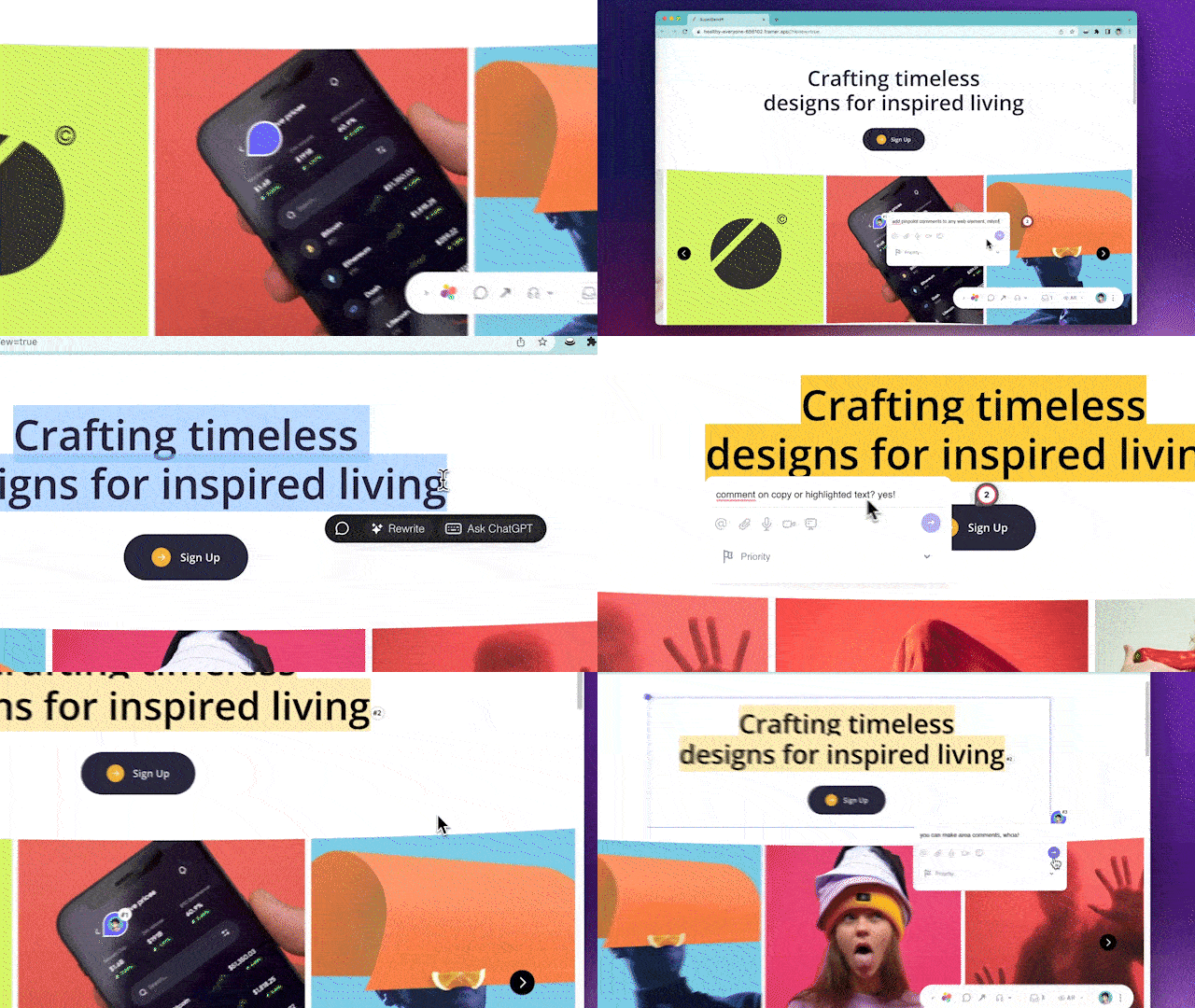
  <Step title="Dropping your first comment">
    Try leaving a comment on your page.

    You can leave a comment in several different ways:

    * By highlighting any text
    * By hovering over any element on the page
    * By drawing a box anywhere on the page

    You can also leave voice and screen recordings in your comments as well!

    <Frame>
      <img src="https://mintcdn.com/superflow-claude-superflow-portal-docs-78gpp8/_zKrRwh5L1PapanY/images/demo.gif?s=f8a9dd8577b5ee8929ed7dd7e34658fb" alt="Next.js: Dropping your first comment" width="640" height="360" data-path="images/demo.gif" />
    </Frame>
  </Step>
</Steps>