> ## Documentation Index
> Fetch the complete documentation index at: https://superflow-claude-superflow-portal-docs-78gpp8.mintlify.site/llms.txt
> Use this file to discover all available pages before exploring further.
# Team Users and Guests
> The two roles in a Superflow workspace, what each can do, and how seats work.
Superflow has two roles, designed around how agencies work: your team runs the workspace, and your clients comment on the projects you share with them.
| | **Team User** (Admin) | **Guest** (Commenter) |
| -------------------------------- | ------------------------------ | ------------------------------------- |
| Who it is for | Your agency's team | Clients and outside reviewers |
| Access | Every project in the workspace | Only the projects they are invited to |
| Comment, reply, react | Yes | Yes |
| Set status and priority | Yes | Yes |
| Approve files | Yes | Yes |
| Create projects, manage settings | Yes | No |
| Invite users, manage billing | Yes | No |
| See private comments | Yes | No |
| Counts against | User seats | Guest seats |
## Inviting each role
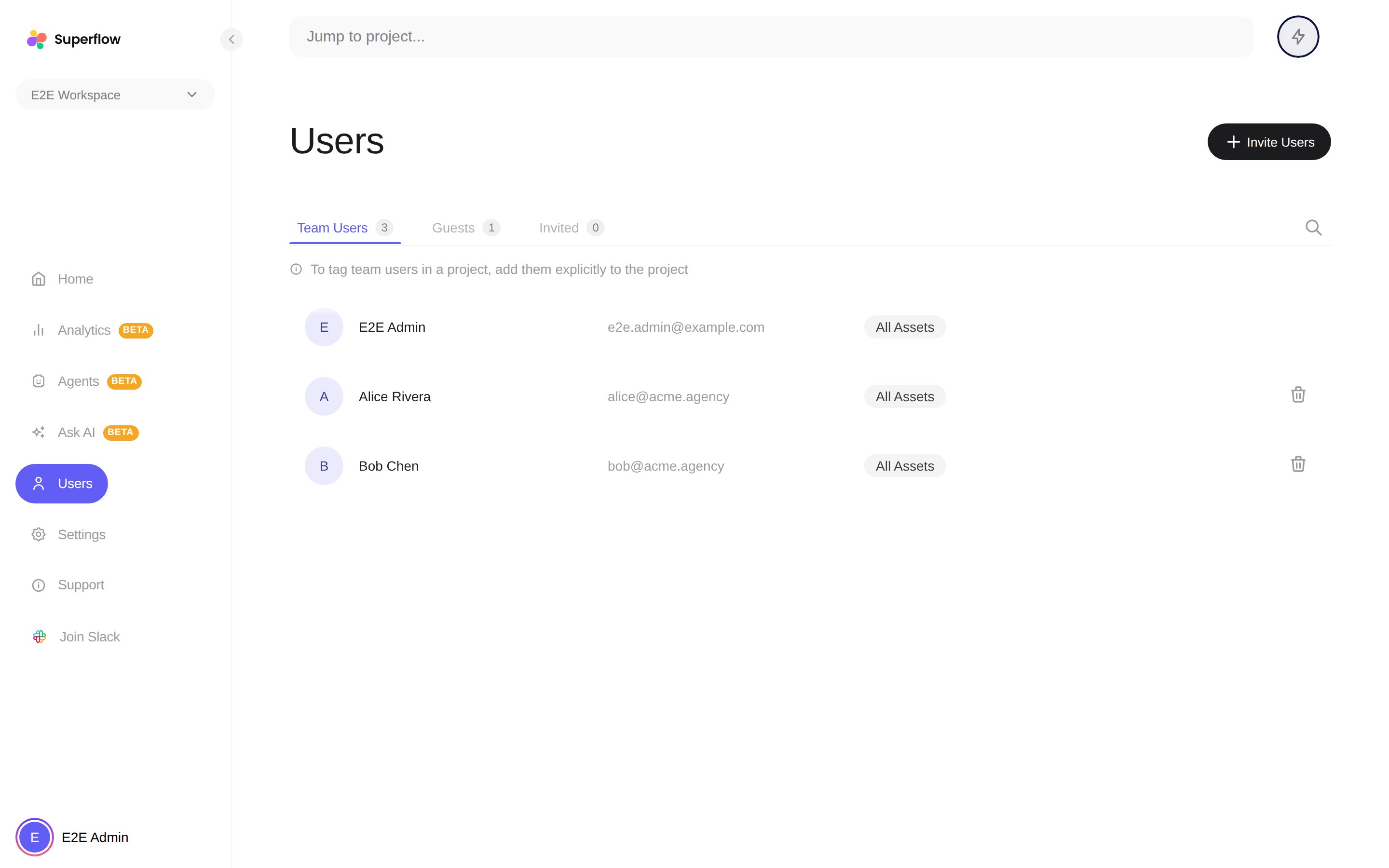 On the **Users** page, click **Invite Users** and pick the user type:
* **Team User** joins the whole workspace. Enter one or more emails and send.
* **Guest** must be tied to a project. Pick the project, enter their email, and send, or skip email entirely and copy the **Review Link** for that project.
Invitations you have sent but that have not been accepted are listed on the **Invited** tab, where you can withdraw them.
## Do clients even need an invite?
Often not. With [guest mode](/product-features/what-is-guest-mode) enabled on a project, anyone with the review link can comment, either anonymously with just a name, or signed in if you allow it. Use Guest invitations when you want a consistent identity for a client across rounds of review.
## Seats
Your plan includes a number of user seats (Team Users) and guest seats. Current usage is shown on the **Billing** page, and you can add seats from there when the team grows. When seats run out, the invite dialog shows your usage and offers an upgrade, or you can withdraw pending invitations to free a seat.
On the **Users** page, click **Invite Users** and pick the user type:
* **Team User** joins the whole workspace. Enter one or more emails and send.
* **Guest** must be tied to a project. Pick the project, enter their email, and send, or skip email entirely and copy the **Review Link** for that project.
Invitations you have sent but that have not been accepted are listed on the **Invited** tab, where you can withdraw them.
## Do clients even need an invite?
Often not. With [guest mode](/product-features/what-is-guest-mode) enabled on a project, anyone with the review link can comment, either anonymously with just a name, or signed in if you allow it. Use Guest invitations when you want a consistent identity for a client across rounds of review.
## Seats
Your plan includes a number of user seats (Team Users) and guest seats. Current usage is shown on the **Billing** page, and you can add seats from there when the team grows. When seats run out, the invite dialog shows your usage and offers an upgrade, or you can withdraw pending invitations to free a seat.