> ## Documentation Index
> Fetch the complete documentation index at: https://superflow-claude-superflow-portal-docs-78gpp8.mintlify.site/llms.txt
> Use this file to discover all available pages before exploring further.
# How to Export Comments
> Download every comment on a project as JSON or CSV from the project's settings.
You can export all comments on a project, including their status, priority and replies, as a JSON or CSV file. CSV opens directly in Excel or Google Sheets, which makes it an easy way to hand a client a punch list or archive a project's feedback.
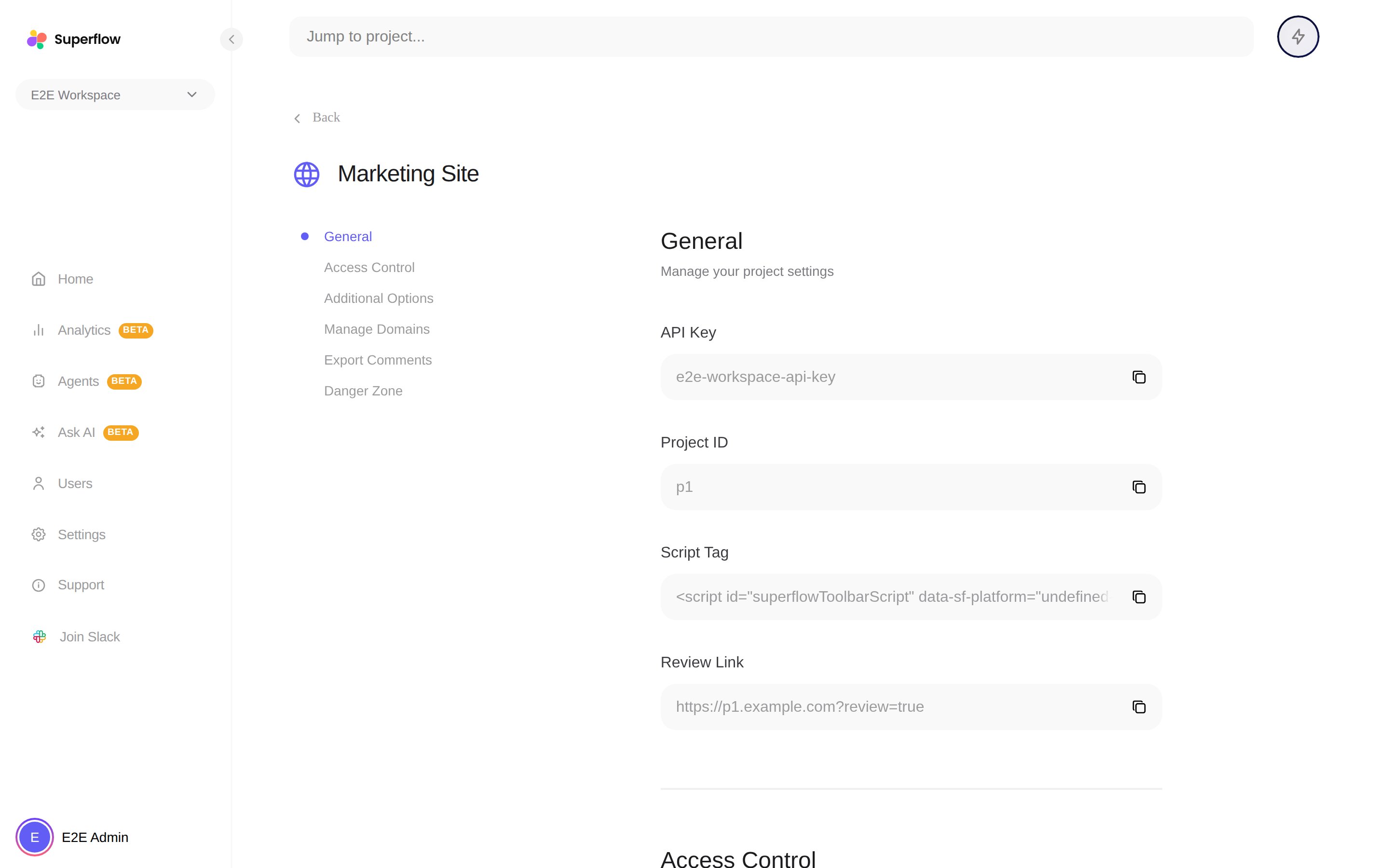
On the Superflow Dashboard, open the project's three-dot menu and click **Settings**, or open the project and click the settings icon. See [How to Access Project Settings](/dashboard/how-to-access-project-settings).
Choose **JSON** or **CSV** and start the export. The section is listed in the settings navigation on the left.
 Superflow prepares the file and notifies you when the download is ready.
If you want comments pushed to another tool continuously instead of exported once, look at the [integrations](/Integrations/how-to-integrate-with-slack) or [webhooks](/Integrations/how-to-use-webhooks).
Superflow prepares the file and notifies you when the download is ready.
If you want comments pushed to another tool continuously instead of exported once, look at the [integrations](/Integrations/how-to-integrate-with-slack) or [webhooks](/Integrations/how-to-use-webhooks).