> ## Documentation Index
> Fetch the complete documentation index at: https://superflow-claude-superflow-portal-docs-78gpp8.mintlify.site/llms.txt
> Use this file to discover all available pages before exploring further.
# Top Features
> Everything Superflow does, on one page: comments on live sites, AI review agents, file review, client-friendly guest mode, and the dashboard that ties it together.
Superflow is the fastest way for agencies and web teams to review, QA and approve websites and creative assets. This page is the map: what each feature does, who it is for, and where to learn more.
## Review live websites
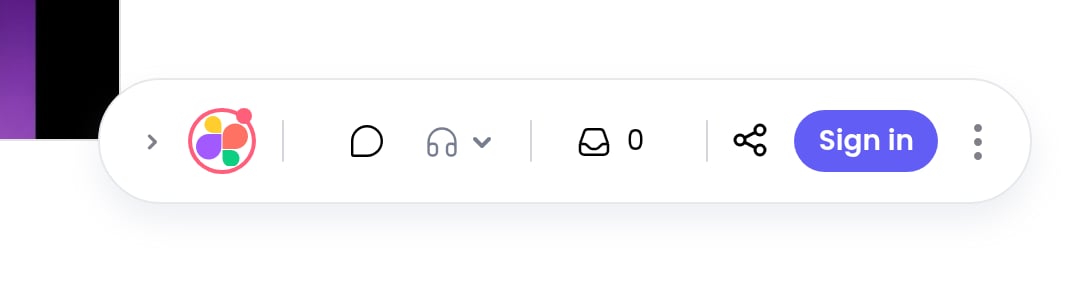
Comment directly on the real site, not on a screenshot of it. Superflow installs as a single script, and the toolbar appears when you add `?review=true` to any URL.
 Pin a comment to an element, highlight text, or draw a box anywhere on the page. Every comment captures the page, device and screen size automatically.
Voice notes, screen recordings and video comments, attached right where the feedback belongs.
Every comment is a task. Set status and priority on the page, then track it on the Kanban board.
Superflow captures a screenshot with each comment, so feedback still makes sense after the page changes.
## AI review agents
Agents are reusable checks you describe in plain English. Superflow runs them against your projects and reports findings: spelling, broken links, accessibility, brand consistency, or anything else you can describe.
Describe the check in plain English. Superflow builds and stress-tests the agent for you.
Upload the QA checklist you already use as a PDF or CSV, and Superflow extracts one agent per check.
One built-in agent that enforces a living checklist of rules your whole team maintains.
Findings appear as pins on the page and as a dedicated tab on the project board.
Agent runs consume [AI credits](/billing/ai-credits) from your workspace balance. The cost is always shown before you confirm a run.
## Client review without friction
Your clients should never need a login, a plugin, or a tutorial to leave feedback.
Clients comment without creating an account. Optionally let them sign in, or stay anonymous with just a name.
Share a single link that opens the site with the toolbar ready. Password protection available for sensitive work.
## Files, PDFs and media
Websites are half the job. Superflow also reviews the assets around them: PDFs, images, videos, Lottie animations, and Figma files.
Drop in a PDF, image, video or Lottie file and get a review link in seconds.
Connect Figma, pick frames, and review designs with the same comments and statuses as everything else.
Every file keeps a version history. Approve the final version so everyone knows what shipped.
The same commenting tools you use on live sites, on any uploaded asset.
## The dashboard
The Superflow dashboard at [app.usesuperflow.com](https://app.usesuperflow.com) is where the work gets tracked and the workspace gets managed.
Every comment is a card. Drag between status columns, filter by person or page, and add your own custom statuses.
Comment volume, resolution times, busiest projects, and who is waiting on whom.
Team Users manage the workspace. Guests are your clients, scoped to the projects you invite them to.
Put your agency's logo on the toolbar and the dashboard, so clients see your brand, not ours.
Download every comment on a project as JSON or CSV.
A digest of activity across your projects, on the schedule you choose.
## Connect your tools
Slack, Asana, ClickUp, Monday, Vercel, email, and webhooks. Send comments where your team already works.
Create projects and automate Superflow from your own systems.
Connect Superflow to Claude, ChatGPT, Cursor and other AI tools, and let them run agents and read findings for you.
Get notified on your own endpoint whenever comments are added, resolved, or change status.
Pin a comment to an element, highlight text, or draw a box anywhere on the page. Every comment captures the page, device and screen size automatically.
Voice notes, screen recordings and video comments, attached right where the feedback belongs.
Every comment is a task. Set status and priority on the page, then track it on the Kanban board.
Superflow captures a screenshot with each comment, so feedback still makes sense after the page changes.
## AI review agents
Agents are reusable checks you describe in plain English. Superflow runs them against your projects and reports findings: spelling, broken links, accessibility, brand consistency, or anything else you can describe.
Describe the check in plain English. Superflow builds and stress-tests the agent for you.
Upload the QA checklist you already use as a PDF or CSV, and Superflow extracts one agent per check.
One built-in agent that enforces a living checklist of rules your whole team maintains.
Findings appear as pins on the page and as a dedicated tab on the project board.
Agent runs consume [AI credits](/billing/ai-credits) from your workspace balance. The cost is always shown before you confirm a run.
## Client review without friction
Your clients should never need a login, a plugin, or a tutorial to leave feedback.
Clients comment without creating an account. Optionally let them sign in, or stay anonymous with just a name.
Share a single link that opens the site with the toolbar ready. Password protection available for sensitive work.
## Files, PDFs and media
Websites are half the job. Superflow also reviews the assets around them: PDFs, images, videos, Lottie animations, and Figma files.
Drop in a PDF, image, video or Lottie file and get a review link in seconds.
Connect Figma, pick frames, and review designs with the same comments and statuses as everything else.
Every file keeps a version history. Approve the final version so everyone knows what shipped.
The same commenting tools you use on live sites, on any uploaded asset.
## The dashboard
The Superflow dashboard at [app.usesuperflow.com](https://app.usesuperflow.com) is where the work gets tracked and the workspace gets managed.
Every comment is a card. Drag between status columns, filter by person or page, and add your own custom statuses.
Comment volume, resolution times, busiest projects, and who is waiting on whom.
Team Users manage the workspace. Guests are your clients, scoped to the projects you invite them to.
Put your agency's logo on the toolbar and the dashboard, so clients see your brand, not ours.
Download every comment on a project as JSON or CSV.
A digest of activity across your projects, on the schedule you choose.
## Connect your tools
Slack, Asana, ClickUp, Monday, Vercel, email, and webhooks. Send comments where your team already works.
Create projects and automate Superflow from your own systems.
Connect Superflow to Claude, ChatGPT, Cursor and other AI tools, and let them run agents and read findings for you.
Get notified on your own endpoint whenever comments are added, resolved, or change status.