> ## Documentation Index
> Fetch the complete documentation index at: https://superflow-claude-superflow-portal-docs-78gpp8.mintlify.site/llms.txt
> Use this file to discover all available pages before exploring further.
# How to Invite Users to your Project
> Invite your team and your clients: Team Users get the whole workspace, Guests get just their project.
There are two user types in Superflow. **Team Users** (Admins) can access every project and manage the workspace. **Guests** (commenters) can only comment on the projects they are invited to. See [Team Users and Guests](/product-features/user-roles-explained) for the full comparison.
Then click the **Invite Users** button in the top right.
Type or paste emails, separated by commas. Each becomes a removable pill.
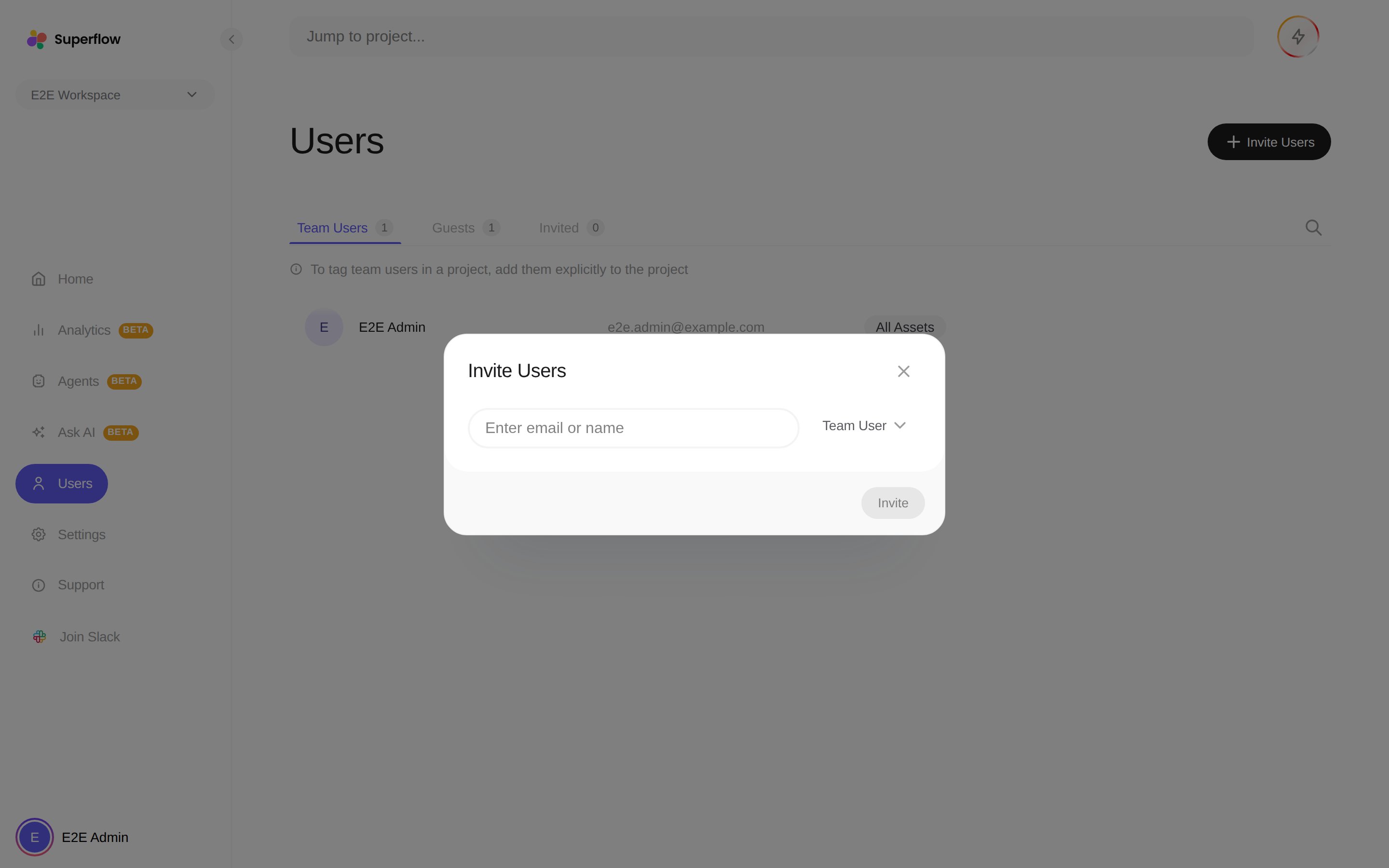 * **Team User**: joins the whole workspace with access to every project.
* **Guest**: tied to a single project. Pick the project when prompted.
Each address receives an invitation email. Pending invitations appear on the **Invited** tab, where you can withdraw them.
Clients often do not need an invitation at all. With [guest mode](/how-to-guides/how-to-use-guest-mode) enabled, anyone with the review link can comment. You can also click **Share** on any project to copy the review link directly.
* **Team User**: joins the whole workspace with access to every project.
* **Guest**: tied to a single project. Pick the project when prompted.
Each address receives an invitation email. Pending invitations appear on the **Invited** tab, where you can withdraw them.
Clients often do not need an invitation at all. With [guest mode](/how-to-guides/how-to-use-guest-mode) enabled, anyone with the review link can comment. You can also click **Share** on any project to copy the review link directly.