> ## Documentation Index
> Fetch the complete documentation index at: https://superflow-claude-superflow-portal-docs-78gpp8.mintlify.site/llms.txt
> Use this file to discover all available pages before exploring further.
# How to Invite Admin Users
> Invite a Team User, who gets admin access to every project in your workspace.
Admins are called **Team Users** in Superflow. They can access every project, create projects, and manage the workspace. See [Team Users and Guests](/product-features/user-roles-explained).
Then click **Invite Users** in the top right.
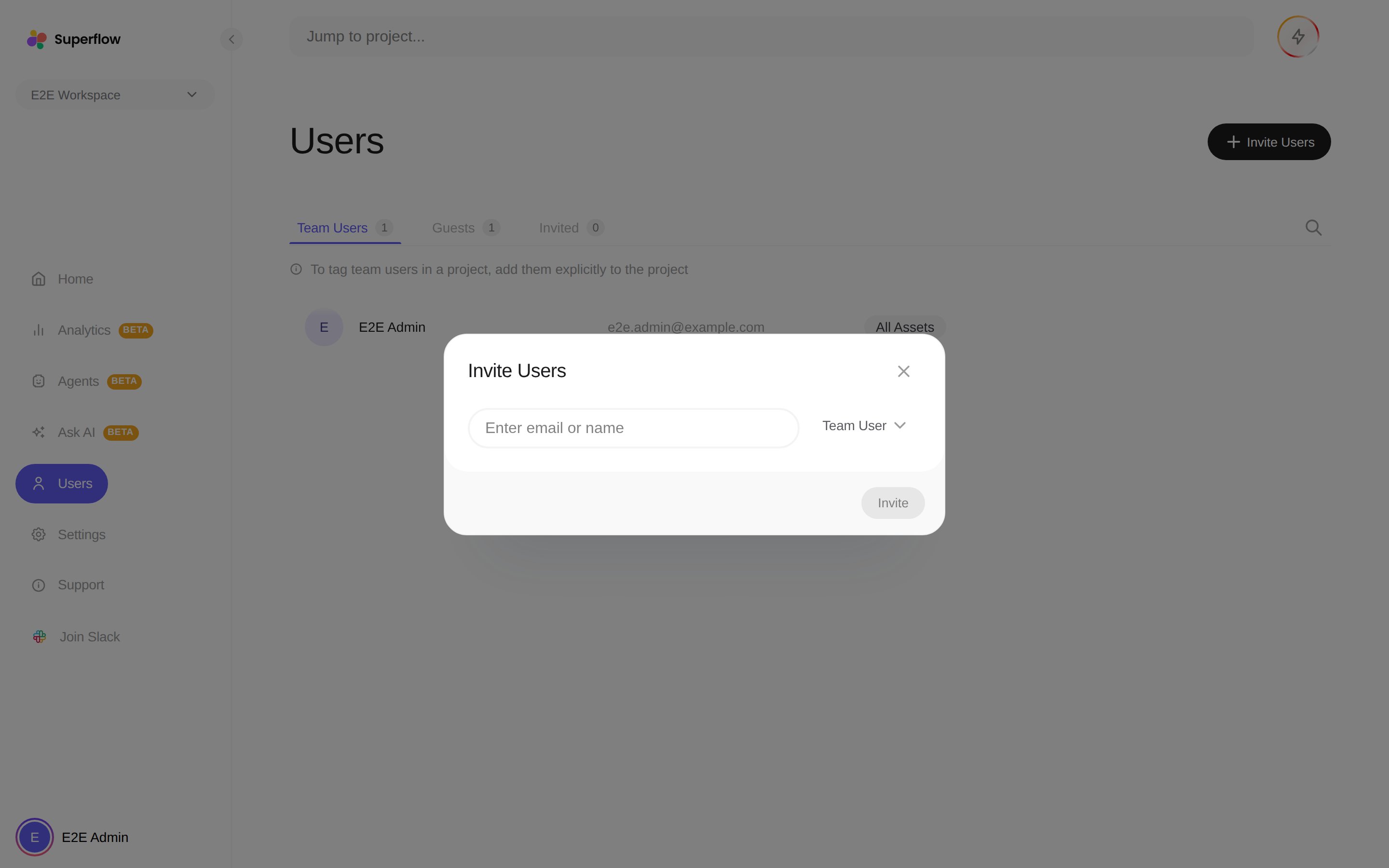 They receive an invitation email. Until they accept, the invitation is listed on the **Invited** tab, where you can withdraw it.
Team Users consume user seats from your plan. If seats are full, the dialog shows your usage and offers an upgrade, or you can withdraw a pending invitation to free a seat. See [What is a Seat](/billing/what-is-a-seat).
They receive an invitation email. Until they accept, the invitation is listed on the **Invited** tab, where you can withdraw it.
Team Users consume user seats from your plan. If seats are full, the dialog shows your usage and offers an upgrade, or you can withdraw a pending invitation to free a seat. See [What is a Seat](/billing/what-is-a-seat).